What information can be found here
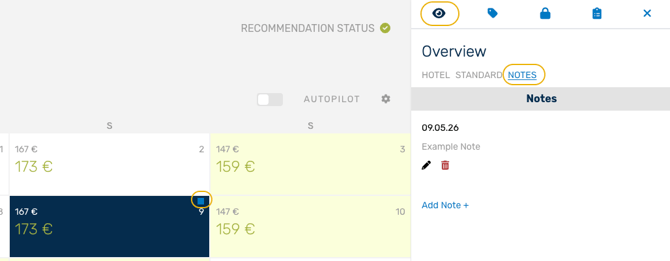
To support informed rate decisions, the Rate Editor provides key background insights including revenue and occupancy KPIs, competitor pricing, events, and reference rates from one year ago. These insights are organized into the following sections:
- Key KPIs section: choose hotel or category level, to find up to date values compared to last years reference values.
- Competitors section: competitor rates from booking.com. Icons show information about the competitor rates room type, catering type or cancellation policy.
- Events section: Your custom events from current and last year
in detail:
How to create and edit notes
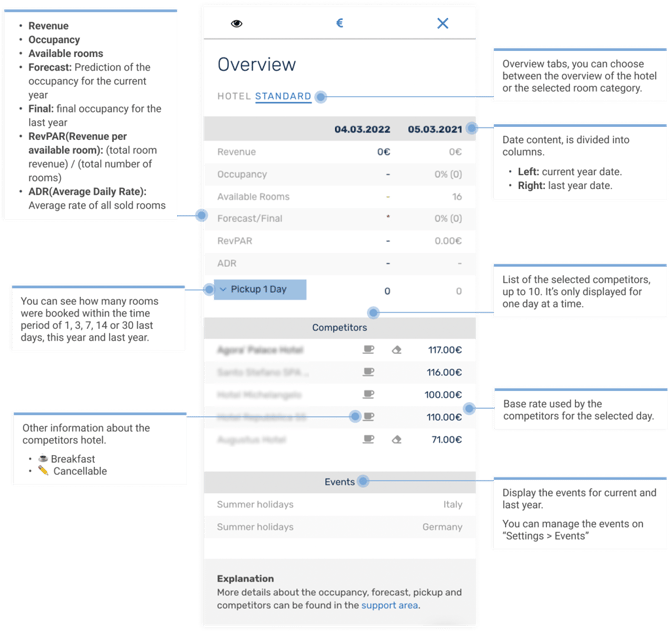
On the rate calendar, you can add notes to specific dates that will be visible to all your hotel’s users. Once you are done, your note will be visible on the selected days and a blue tag will be displayed in the calendar.
Creation of notes:
- Go to the manage page
- Select a date or date range to for which you want to add a note
- Open the overview tab on the right side
- Click on Overview > Notes
- Click on “Add note”, write your note and click save.
You can edit or delete notes by using the icons below the note you have created.