
Info: General restriction management and configuration should be done on the Restrictions Settings page. The Restrictions tab provides a quick overview of your setup and allows for fast, manual adjustments.
Abbreviations
- MinLOS: Minimum length of stay
- MaxLOS: Maximum length of stay
- CTA: Closed to arrival (guests can’t check in on the selected days)
- CTD: Closed to departure (guests can’t check out on the selected days)
Note: Keep in mind that the restrictions available to your hotel will depend on your PMS and Channel Manager.
How to check restrictions in the Manage Calendar
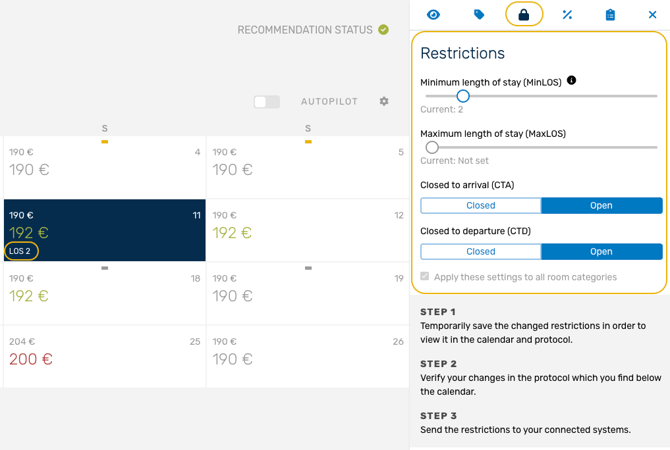
If restrictions have been set for a particular day, it will be displayed in the calendar at the respective card. Go to the Manage page and select a date. The rate panel will open on the right side of the screen. Click on the locker icon to view the restrictions tab.
In the example shown below, we have set a minimum stay of 2 days.
Adjust restrictions step by step
- Go to the Manage page.
- Navigate the calendar and select one or multiple dates you would like to make adjustments to. The rate panel will open on the right side of the screen.
- Click on the locker icon to change to the restrictions tab.
- The following restrictions can now be implemented for the selected dates:
- MinLOS: Minimum length of stay (0–14 nights or unset).
- MaxLOS: Maximum length of stay (0–14 nights or unset).
- CTA: Closed to arrival, guests can’t check in on the selected days.
- CTD: Closed to departure, guests can’t check out on the selected days.
- A “Save” button will be displayed at the bottom of the restrictions panel, click “Save” to move the adjustment to the change log.
- Finally, review the entries in the change log and publish them to your PMS or CM.
Note: By default, restrictions are applied to all room categories. To set different values for each category, deselect “Apply to all room categories” at the bottom of the editor.
Discover more features of Manage Calendar:
Manage Calendar
Manage detail sidebar: Overview
Manage detail sidebar: Rates
Manage detail sidebar: Calculation
Manage detail sidebar: Rate Plans