
Overview:
2. Room pricing configuration (room prices depending on occupancy)
By the way: The article Calculation of Rates provides even more insight into how the settings interact.
1. Price levels
In the settings area Pricelevels, you can define your pricing strategy for all room categories at different times of the year in two steps.
a) Define price levels
In the first step, you need to define your price levels in Settings > Pricelevels > Price Levels.
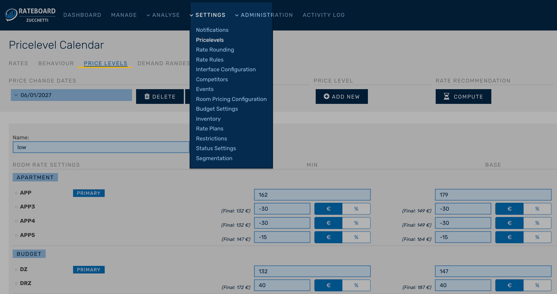
First, you define the applicable price ranges for your primary rooms. Price derivations for assigned room types in the same category are then entered in the form of differences from the primary room. In detail, all base rates as well as the minimum and maximum rates for each room type are defined according to this logic. This ensures that the limits you set are never exceeded or fallen short of.
Note: The room categories are predefined by RateBoard. In advance you need to bundle your existing room types into categories and define the primary room type in the inventory settings.
See also Inventory
Tip: Find a detailed description with a step-by-step guide here:
Define price levels.
It is possible to define multiple price levels to reflect seasonal rates. In the second step, the price levels are distributed across the different periods of the year in the rate calendar.
b) Map your price levels in the calendar
The correct price level needs to be assigned to each individual day of the year. This can be done quickly and easily by selecting entire connected periods.
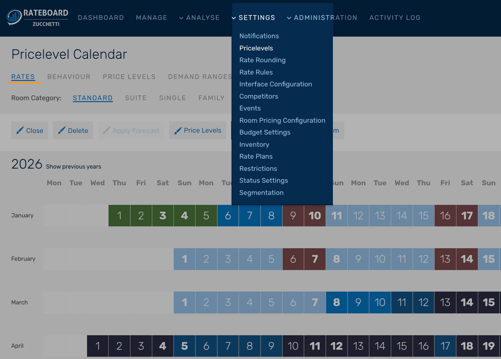
You can set the same price levels for the entire hotel or specifically at the category level.
Important: Closing days are also entered here! This affects rate calculation and analytics.
Tip: Find the detailed description with step-by-step guide here:
Map price levels in the calendar.
2. Room pricing configuration (room prices depending on occupancy)
In principle, all room prices can be defined with an occupancy strategy in this configuration. Do you offer children's rates and a standard number of guests for your room types? And how should rates change if the standard number of guests is deviated from?
Important: The standard occupancy strategies to be applied depend on the PMS. Your PMS determines whether and how these settings are to be made, because certain values are expected or calculated internally. Please contact our support team if you have any questions.
Detailed step-by-step instructions can be found here:
Room pricing configuration.
3. Rate rules (optional)
To tailor the rate recommendations even more closely to your own strategy, RateBoard offers a comprehensive rule editor that allows you to control rates based on specific conditions such as occupancy, ADR, RevPAR, weather, or competitor rates. The rules complement the rate recommendations determined by the algorithm and allow for completely individual optimizations.
Practical examples for this feature include weekend charges when a certain occupancy rate, temperature, wind speed, etc. is reached.
Click here for a detailed description of the feature, including a short introductory video:
Rate Rules.
4. Rate rounding (optional)
To finally round off the rate recommendations according to your specifications, you can choose how RateBoard rounds up or down the suggested rates, whether for smoother numbers or psychologically attractive endings.
Practical examples include rounding up or down to specific numbers such as “9” or multiples of, for example, “5.”
For more information, see the article: Rate Rounding.
5. Rate plans (optional)
With RateBoard, you can create different rate plans, such as early bird rates, non-refundable rates, half board, and others. This saves you extra work in the PMS or CM.
Important: Whether you can create and send rate plans depends on your PMS/CM. If available, the “Rate Plans” option will appear in your “Settings” menu.