The following topics are explained in this article:
A) Step by step: adjust rates on hotel level
B) Step by step: adjust a rate by room category
C) Step by step: adjust a rate by room type
Info: manually adjusting rates is an optional process if you want to overwrite the recommendation provided by RateBoard.
Find information about how rate recommendations are calculated and how they can be published:
How rate recommendations are calculated
Step-by-step guide send rates
Once you have selected one or more days in the rate calendar, the rate tab will automatically open on the right-hand side. There you can then get an overview of the current and suggested rates.
You can adjust these rates on 3 levels of detail:
➡️ A) Top Level: Adjust your rates for all categories (whole hotel)If you need to quickly and easily approve rates for all room categories or adjust them by a certain amount or percentage, use the adjustment function available at hotel level.
Quickly scroll down to the step-by-step instructions.
➡️ B) Mid Level: Adjust your rates by room categoryWhen adjusting your rate by room category, you’ll focus on the changes in the primary room type of the category.
See the detailed step-by-step instructions below.
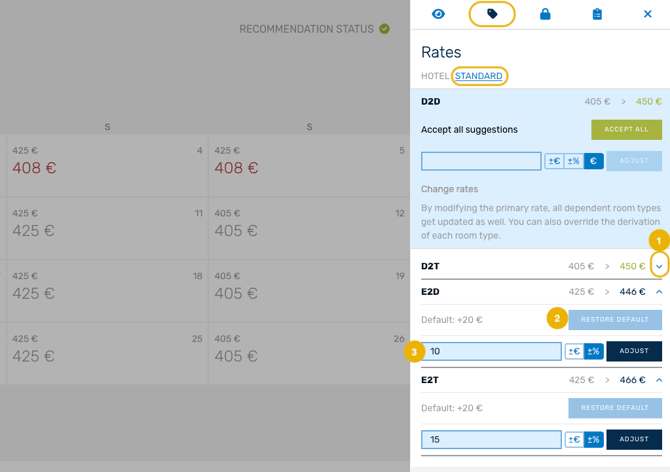
➡️ C) Granular Level: Adjust your rates by room typeThere is even the possibility to go one level deeper and adjust the rates for specific room types. The procedure is initially the same, you just need to expand each room type by clicking on the expand button (🔽). Once you do that, you will find the current rate difference to the primary room type that you could adjust according to your needs.
See the detailed step-by-step instructions below
Note: Find out everything about room categories, room types and required settings related to rate calculation and price levels here:
A) Step by step: adjust rates on hotel level
Preparation: Select one or multiple dates directly in the calendar where you would like to make adjustments to. The rate panel will open on the right side of the screen.
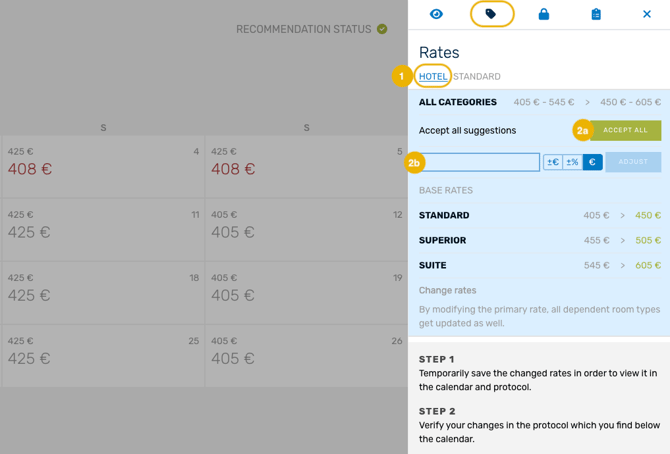
- In order to apply your actions on hotel level, switch on top of the rate tab to 'Hotel'.
- The panel will change, and you’ll see all room categories listed there. Then you can:
- Accept the rate recommendations by clicking on 'Accept All'
This action is applied automatically to tall categories. - Adjust the rate manually by using the input field.
Decide, if you would like to adjust the rate by:- ±€: increase or decrease by x€
- ±%: increase or decrease by x%
- €: define a new value
Note: By modifying the primary rate, all dependent room types get updated as well. - Accept the rate recommendations by clicking on 'Accept All'
- Once the actions are done, save them.
- Finally, review the entries in the change log and publish them to your PMS.
B) Step by step: adjust a rate by room category
Preparation: Select the room category you would like to work on and select one or multiple dates you would like to make adjustments to. The rate panel will open on the right side of the screen.
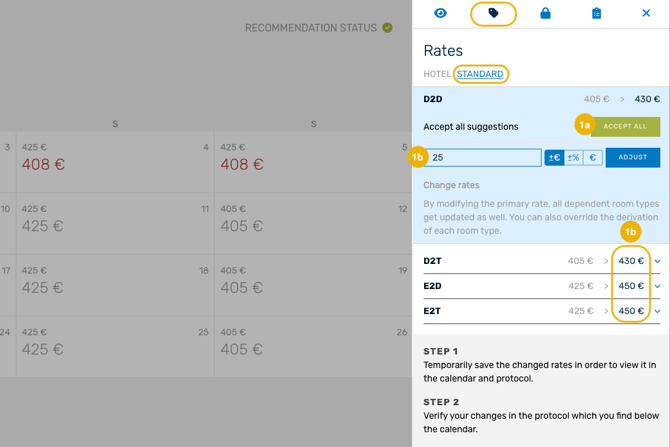
- To adjust rates by room category, focus on the primary room, the first one and with a blue background. You can:
- Accept the rate recommendations by clicking on 'Accept All'
This action is applied automatically to the assigned roomtypes. - Adjust the rate manually by using the input field.
Decide, if you would like to adjust the rate by:
- ±€: increase or decrease by x€
- ±%: increase or decrease by x%
- €: define a new value
Note: By modifying the primary rate, all dependent room types get updated as well.
- Accept the rate recommendations by clicking on 'Accept All'
- Once the actions are done, save them.
- Finally, review the entries in the change log and publish them to your PMS.
C) Step by step: adjust a rate by room type
Preparation: Select the room category you would like to work on and select one or multiple dates you would like to make adjustments to. The rate panel will open on the right side of the screen.
-
To adjust rates by room types, focus on the rooms and use the arrow pointing down (🔽) to expand the options for the rooms.
- You’ll see input fields and an option to restore the default value.
- Using the input field you can decide if you would like to adjust the room rate by:
- ±€: increase or decrease by x€
- ±%: increase or decrease by x%
Enter the desired value – remember that this is defining how much the room rate will derive from the primary room rate: active primary rate plus the defined values or percentage.
- Click 'Adjust'. You will then be able to see the new rate in the summary right above.
- Once the actions are done, save them.
- Finally, review the entries in the change log and publish them to your PMS.