
Step 1
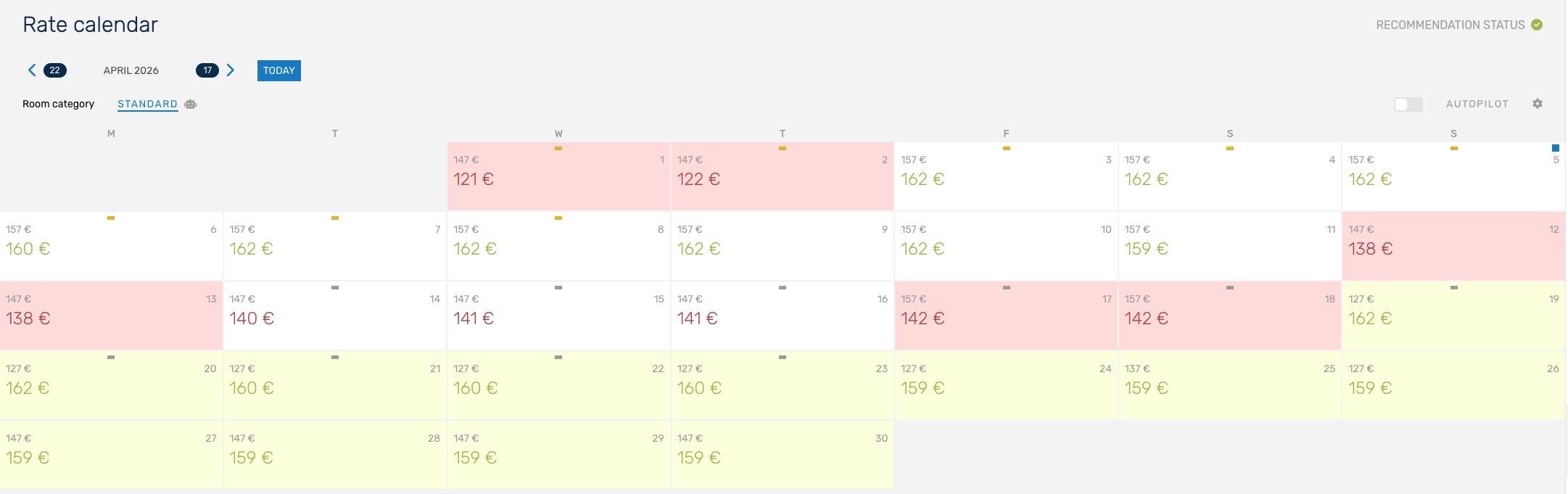
First, open the Rate calendar in the Manage section, which provides a structured overview of all current rate recommendations per room category. Colour coding makes it clear at a glance whether the recommendation is to increase (green) or reduce (red) the daily rate.
Note: Are you wondering how the rate recommendations are determined? You can find the answer in this article:
Calculating rates
Step 2
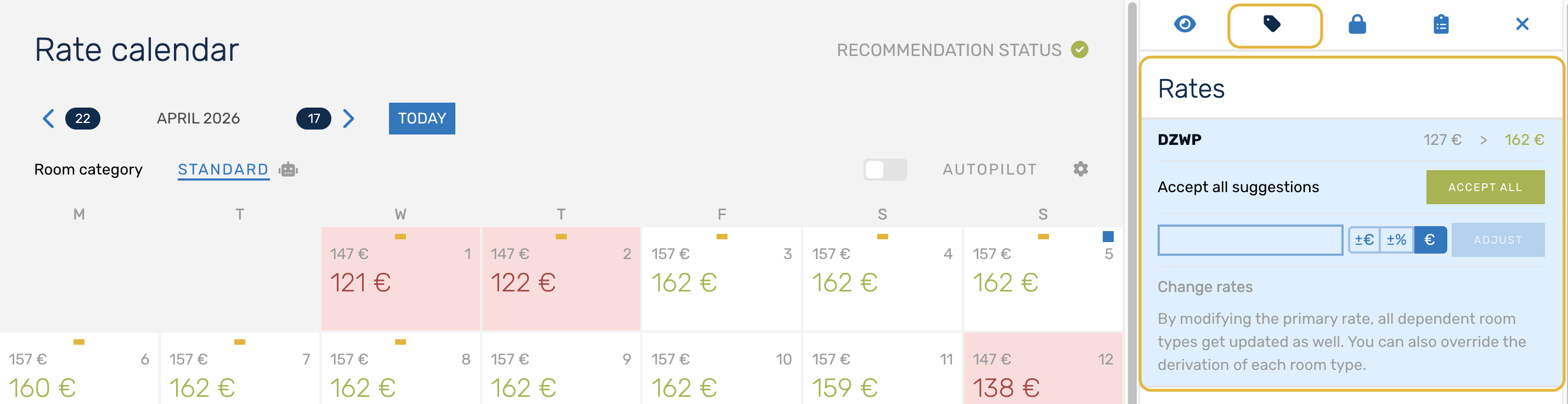
Clicking on a specific day in the calendar opens the Rate Editor on the right-hand side, where you will find several tabs with detailed information on KPIs, calculation bases and applicable restrictions, giving you an overview of all relevant conditions.
Step 3
Based on the available information and your personal evaluation, you can either continue with manual adjustments or directly confirm the rates (simply by clicking on ‘ACCEPT ALL’).
Adjustments can be made individually at the hotel, room category or room type level in the ‘Rates’ tab. This gives you the flexibility to increase or decrease rates by a specific amount or percentage. Don't forget so click at the end on "SAVE"
Tip: You could find detailed instructions on how to make manual adjustments in the following article:
Step 4
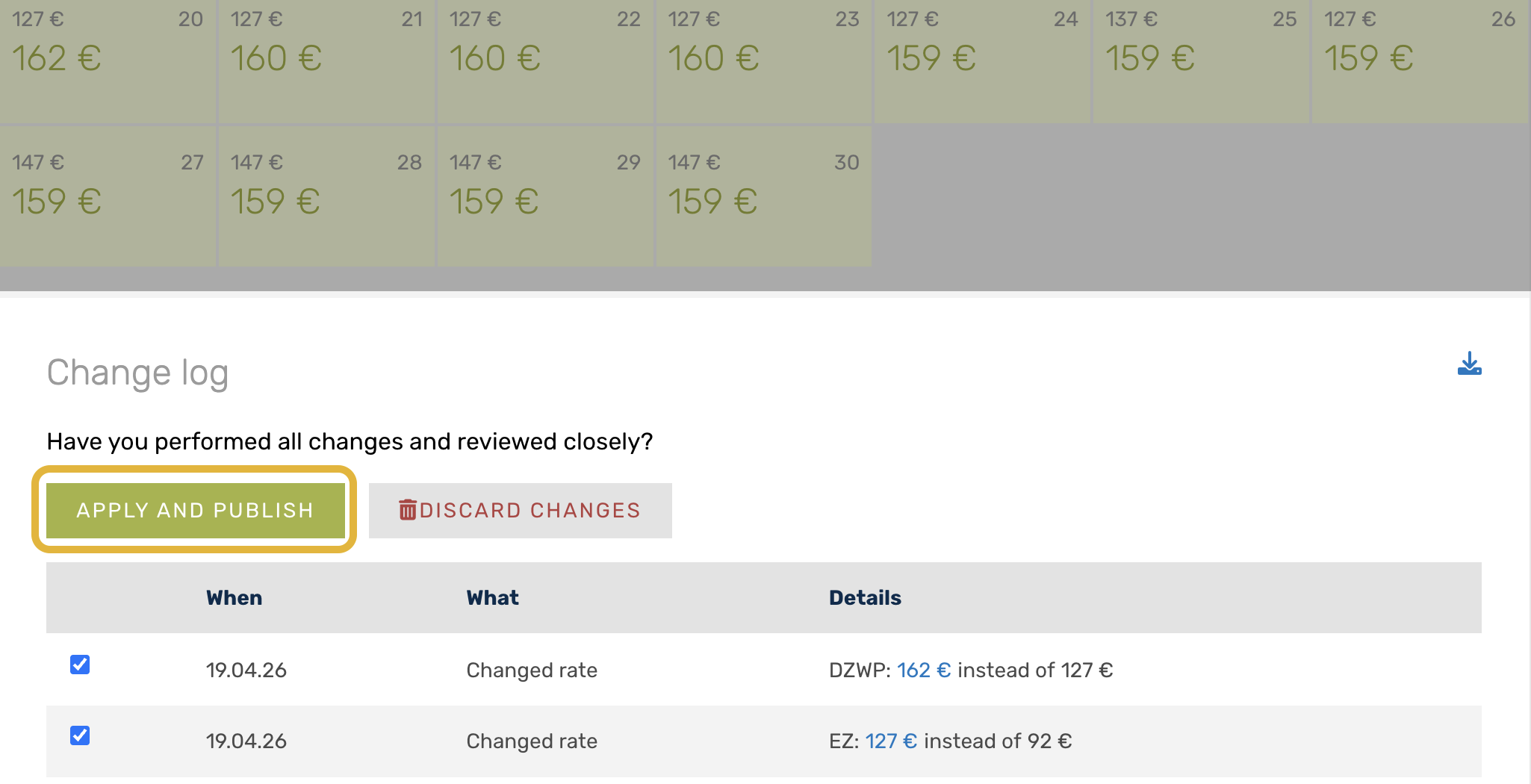
Once you have saved your accepted rates or changes, they will be transferred to the change log. Finally, call up the change log to review all actions once again and give final approval for release.
Step 5
Result: Once you have sent the approval, a success message will appear on the screen.
Note: For certain PMS, RateBoard does not transfer the data immediately, but rather it is collected by the PMS. The frequency depends on the settings in the PMS.
Tip: Autopilot
Have you gained sufficient experience with the generated rate recommendations and are you convinced that automation can save you time in your daily business? Then use Autopilot. It is designed to reduce manual effort and can still be configured according to your needs so that you remain in control.
Find out more here: Autopilot
And even more background information on the Manage Calendar and the individual tabs in the Rate Editor can be found here:
Manage detail sidebar: Calculation
Manage detail sidebar: Overview