
The following topics are explained in this article:
1. How to set up the Autopilot
2. How to activate/deactivate Autopilot
3. Deactivating the autopilot for specific days - Fix rates
1. How to set up the Autopilot
You can find the Autopilot on the Manage page, where you can configure and activate it.
Info: the Autopilot is not included in all licences. Please contact our support team if you can not find the autopilot in your manage calendar.
Before activating it, you need to set up the autopilot according to your strategy:
- Open rates calendar and go to the autopilot settings by clicking on the ⚙️ icon, on the top right side of the page.
- In the autopilot settings, please define:
- Define rolling date range in DBA (mandatory setting): the time period you would like to send the rates automatically. It is possible to set a maximum of 420 days.
example: “Only push rates for days between 14 and 420 days before arrival date”, that means from current day. So if on 01.03 we set this rule, the autopilot would be applied from 14.03.. - Deviation (optionally): set a maximum deviation above and/or below the base rate.
tip: You can check your base rates in Settings > Pricelevels > Price Levels. - Apply to all (optionally): define if the configurations should be applied to all room categories, or only the selected one.
- Define rolling date range in DBA (mandatory setting): the time period you would like to send the rates automatically. It is possible to set a maximum of 420 days.
- Once you are done, click 'SUBMIT'.
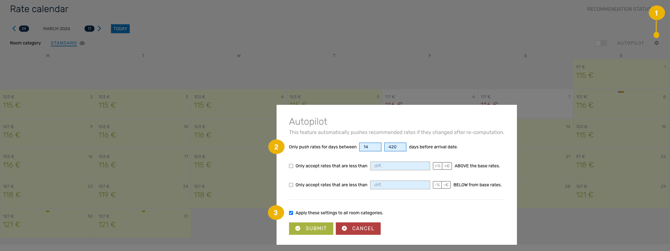
You can change your settings at any time.
The set up will be saved, but you still need to manually activate the autopilot for each room category.
2. How to activate/deactivate Autopilot
After setting up the autopilot options, you can activate or deactivate it by switching the toggle for each category.
- Go to the Manage page
- Select the room category you want to activate autopilot for.
- Click on the switch on the right of the page. Do the same for other categories.
Result: For each room category, you will see a robot icon next to the category name.
- Robot is blue: autopilot is active.
- Robot is grey: autopilot is inactive.

3. Deactivating the autopilot for specific days - Fix rates
On days when autopilot is active, manual rate sending isn’t available.
If you want to exclude individual days from the autopilot, you need to deactivate it by fixing the rates on those days (for each category separately).
Fixing rates:
- Go to the Manage page
- Select a room category
- Navigate the calendar and select one or multiple dates.
- Click on the robot icon to change to the autopilot tab.
- Click on 'Fix Rates'. Once you do that, the autopilot will be deactivated for the selected days.Rates will not be sent automatically for these days until you unfix them.
- You will be able to change the rates manually.
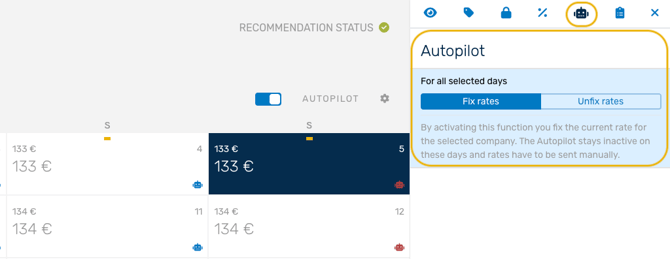
Tip: Read this article to find out what steps are required for manually adjusting rates: Manage detail sidebar: Rates
You can easily find out if the autopilot is switched on or off for a specific day by checking the colour of the robot at the bottom of the card.
- Red: autopilot is not active, rates are fixed.
- Blue: autopilot is active, rates are sent automatically.