
Contents:
Basics and requirements
How to create or change price levels
Define price levels
Clone price levels
Define price change dates - plan price adjustments
Tip: How do I determine the minimum, maximum and base price?
This article describes how to create and define price levels. Once you have defined the levels, you must then add them to the price level calendar. We explain how to do this in this article:
Map price levels to the calendar
The article How rate recommendations are calculated explains the important role these settings play in rate calculation.
Basics and requirements
What exactly are price levels?
The price level is the framework within the rateBoard algorithm can operate with its rate recommendations. A price level is defined by a maximum value, a minimum value and a base price. In addition, derivations from these values can be specified for certain room types and a validity date. For example, you could set 3 price levels for your hotel with the names ‘high season’, ‘low season’ and ‘mid season’.
Requirements: Inventory
- Room categories: There are 7 predefined room categories in RateBoard (standard, superior, suite, etc.). Each room type defined for your hotel in the PMS must be assigned to a Hubspot category. → See also: Inventory
- Room types: The names of the room types come from your PMS. Examples of room types would be ‘Standard with Balcony’, ‘Standard Mountain View’, ‘Standard Street’. Each room type is assigned to exactly one room category in RateBoard.
Important! Before you can start defining price levels, the room types must first be assigned to categories. You can find out exactly how this works in the article Inventory
How to create or change price levels
First, go to the Pricelevel settings area and select the Price Levels tab at the top. Here you can define your pricing strategy for all room categories.
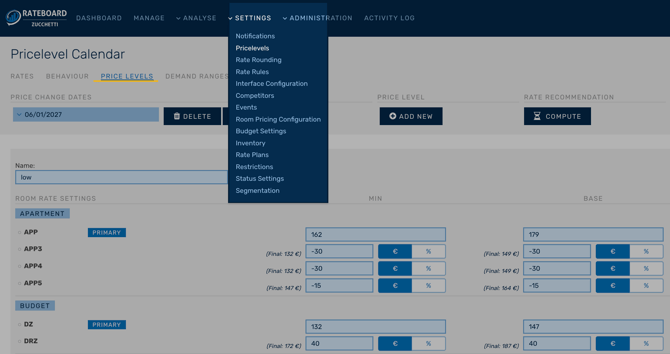
Define price levels
-
Create a new price level
- Create a new price level by clicking on Price Level + ADD NEW.
- A new group will open with all room categories and room types according to the settings in Inventory.
- Name the price level.
(tip: use recognisable names such as ‘High season’)
- Define derivations from the primary type to the related room types
- Define base rates, minimum rates and maximum rates valid for the primary room type. (→ see also section Tips)
- Define derivations from the primary type to the related room types
- Once you have defined the minimum, base and maximum prices for the primary type, you must enter the derivative values for all other assigned room types.
- You can define the difference in
- €: e.g. +/- 10€ or
- %: percentage, e.g, +/-10%
- The resulting rates are calculated and displayed automatically
- Save price levels
- Once all rates have been entered in the price level, you must SAVE the adjustment.
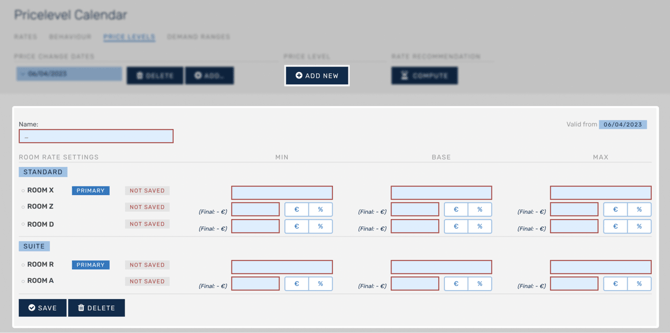
Example:
In this example, Apartment 3 (APP3) will always cost €30 less than the primary type Apartment APP during the high season.

This means that if the RateBoard algorithm recommends a rate of €230 for the Apartment category, a rate of €200 will be set for APP3.
You have now created your first price level, ‘High Season’. You can create as many additional price levels as you like by cloning your first price level and making adjustments to it, or by clicking on + ADD NEW again to start with a blank form.
Important: MIN/MAX will ensure that RateBoard rate recommendations never go below or above these set limits in the future. The base price is the basis of our algorithm and the following calculation steps. The logic is described in more detail in the article
How rate recommendations are calculated
Clone price levels
If you want to save time when creating multiple price levels, you can clone an existing price level.
- Go to the price levels you want to clone.
- Press CLONE.
- Add a different name to your new price level.
- Adjust the rates.
- Press SAVE.
Tip: How do I determine the minimum, maximum and base price?
The base price (BAR – Best Available Rate) is your strategic starting price for an average date with normal occupancy. It lies between the minimum and maximum prices and is based on your target positioning, your desired average daily rate (ADR) and your planned occupancy – the RateBoard algorithm adjusts this value up or down.
The minimum price is the lower price limit and should at least cover all variable costs so that you do not lose money per room sold. You should also be careful not to sell your room ‘below value’ in order to avoid damaging your brand and the market.
The maximum price is the highest market-driven rate you can achieve in times of high demand without risking bookings or your price image. Here, too, you should be careful not to sell above value to avoid dissatisfied guests due to false expectations based on the rate.
Define price change dates - plan price adjustments
Usually, our customers define new maximum, minimum and base rates every 1-3 years in order to respond to economic developments. Price adjustments can be made very easily without having to create new price levels.
For example, if you want to set a new price level for next year, you can add a new price change date from which the price levels are valid.
- Click on + ADD at the top of the price change data.
- Select the validity date.
- Click on OK to save.
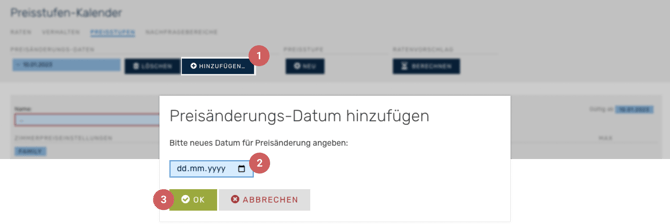
Once you have saved it, you can select this date from the Price change dates drop-down list. In addition, the existing price levels are automatically available for overwriting, and you only need to make changes and save them.
Next step: Map your price levels in the calendar
Once you have saved the price levels, you can distribute them across the different periods of the year.
For a detailed description, see the article Map price levels in the calendar
Further configurations relevant to rate recommendations are described in more detail in these articles: